Displays & KVM
Monitor Wake UP
Back at your PC? Bring your displays back with you.
Knock, knock—wake up, second screen. Request display wake-up after a KVM switch, retry the wake sequence, or restore Extend mode. Optional auto-close when Windows detects two or more active screens.
Published · In Microsoft Store · Product ID 9P6J99D08SBT
The current Microsoft Store listing
What you can do.
Knock, knock. Wake up, second screen.
When your main monitor wakes but your secondary monitor stays asleep, Monitor Wake UP helps request that your displays turn on—especially when returning through a KVM switch.
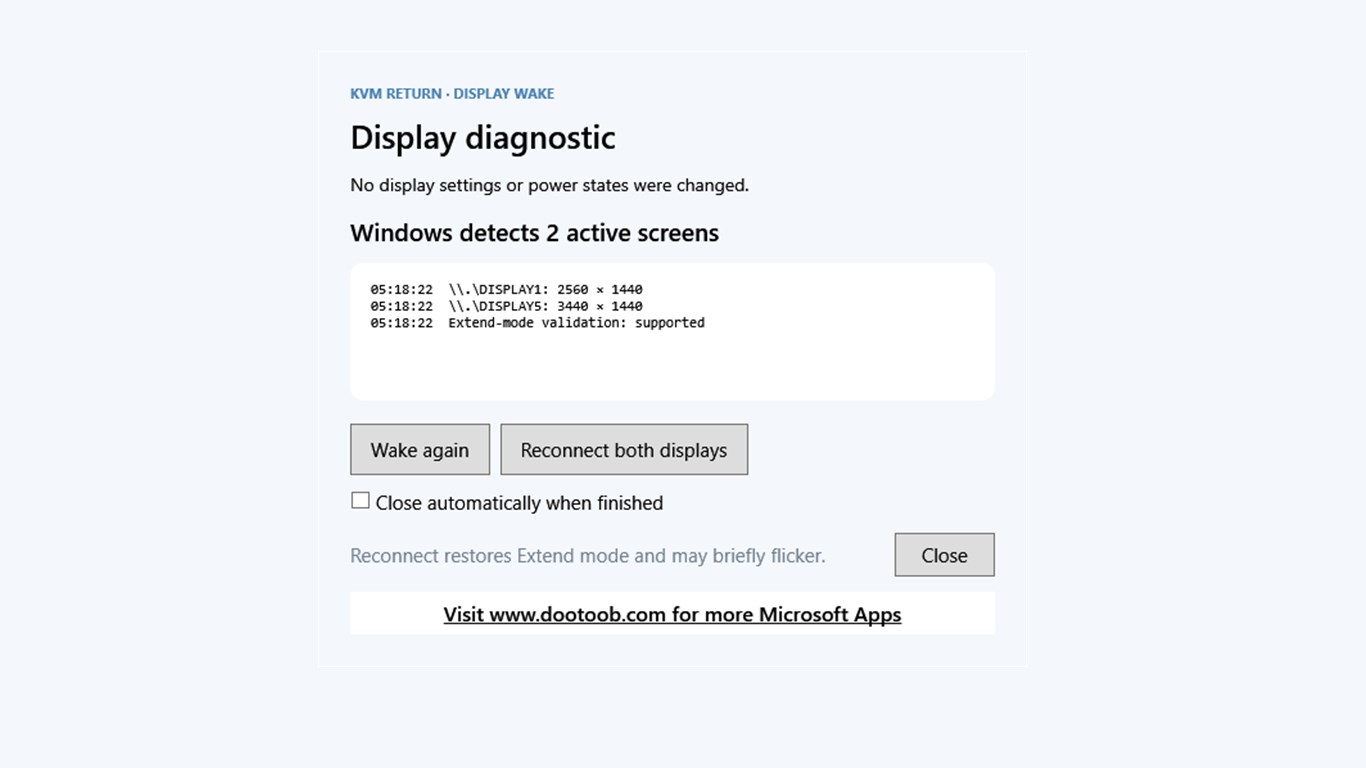
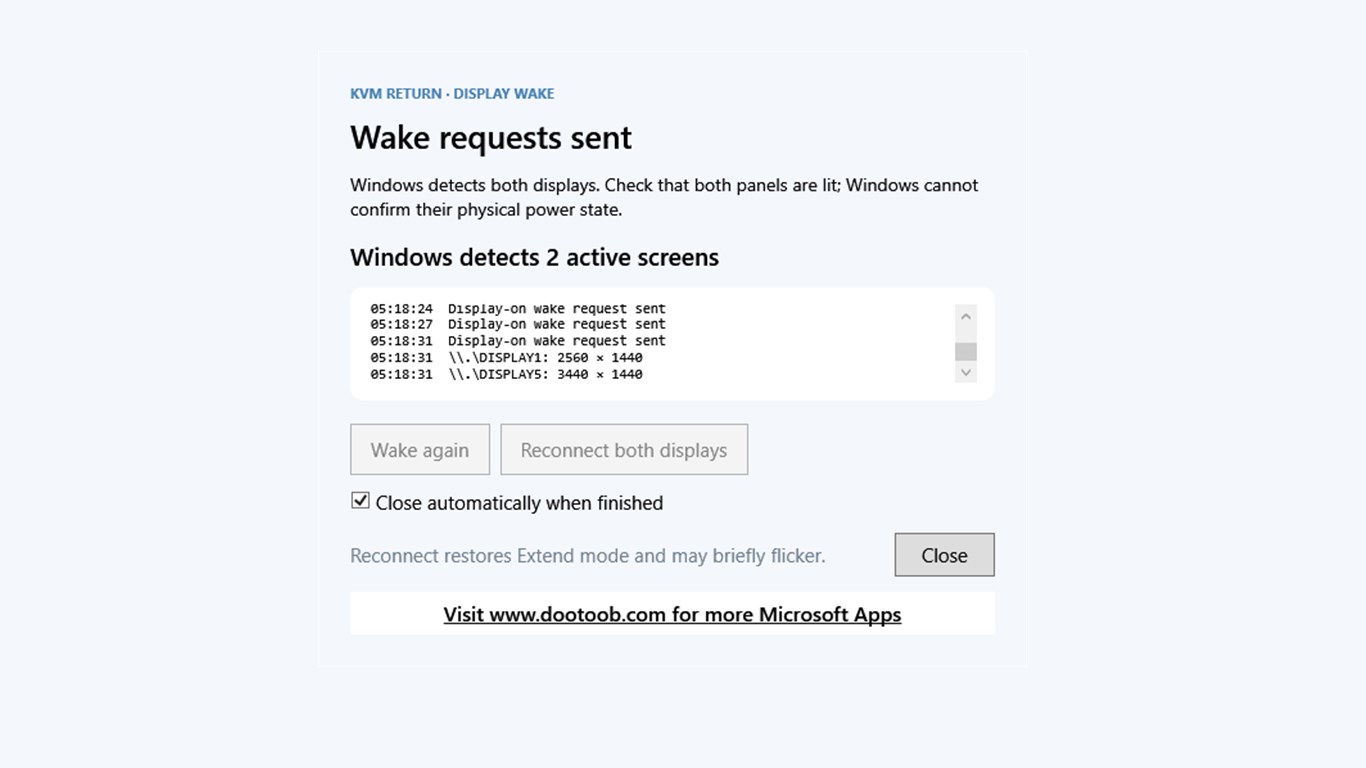
Launch the app to start a short wake sequence. See which active screens Windows detects, retry with Wake again, or choose Reconnect both displays to request the saved extended-display layout. Reconnecting may briefly flicker your screens.
Automatic closing is enabled by default. After the wake sequence, the app closes when Windows detects at least two active screens. Turn off automatic closing to keep the window open. If fewer than two screens are detected, it stays open so you can retry.
────────────────────
Technical Jargon:
This C# WPF application calls Windows Win32 APIs through P/Invoke.
Display-on requests: DefWindowProcW and SendNotifyMessageW from user32.dll use WM_SYSCOMMAND (0x0112), SC_MONITORPOWER (0xF170), and lParam = -1 to request display power-on. DefWindowProcW handles the request for the app window; SendNotifyMessageW broadcasts it using HWND_BROADCAST (0xFFFF). Four rounds run immediately, then after delays of 2, 3, and 4 seconds—approximately nine seconds in total.
Display idle timer: SetThreadExecutionState from kernel32.dll uses ES_CONTINUOUS | ES_DISPLAY_REQUIRED (0x80000002) to temporarily hold the display idle timer awake. ES_DISPLAY_REQUIRED refreshes the timer during the sequence. The app releases its continuous display requirement afterward with ES_CONTINUOUS (0x80000000).
Reconnect: SetDisplayConfig from user32.dll uses SDC_APPLY | SDC_TOPOLOGY_EXTEND | SDC_NO_OPTIMIZATION (0x184) to request the saved extended-display configuration. This operation can briefly flicker the screens.
Screen detection: EnumDisplayMonitors and GetMonitorInfoW enumerate active Windows displays and their resolutions. Windows detecting a display does not confirm that its physical panel is lit. Results depend on the monitor, graphics driver, connections, and KVM.
Auto-close: When enabled and Windows detects two or more active screens, the app waits approximately 3.5 seconds after the wake sequence, checks the option again, and closes. It does not run a permanent background service.
How to use
From opening the app to a useful result.
- 1
After returning from a KVM switch, open Monitor Wake UP.
- 2
Request a display wake sequence and allow the app to retry.
- 3
Use the Extend-mode action if Windows has changed the display arrangement.
- 4
Review the diagnostic status; optionally enable auto-close after both displays are active.
See it before you get it
Explore the app.
All 2 screenshots from the current Store listing. Select any image for the full-size original.
Open the Microsoft Store listing to see the current price, trial options, system requirements and reviews.
Your purchase and installation are handled by Microsoft Store.
App details.
Publisher: Team2020. Availability, requirements and purchase options are shown on the live Microsoft Store page.
App information and screenshots checked against the public Store listing on October 20, 2026.
Read the full Store listing ↗ · Privacy informationMonitor Wake UP
Back at your PC? Bring your displays back with you.
Get it in Microsoft Store ↗← Explore all Microsoft appsMore from DooToob