AI desktop housekeeping
Clean Ai Cache
Clear the clutter. Keep what matters.
Clean up after your AI. Free up disk space by clearing eligible cache, logs and crash files for Claude, ChatGPT and Microsoft Copilot. Includes animated graphics, cleanup results and Gemini activity guidance. Runs locally on Windows.
Published · In Microsoft Store · Product ID 9MT5SHKBWJKP
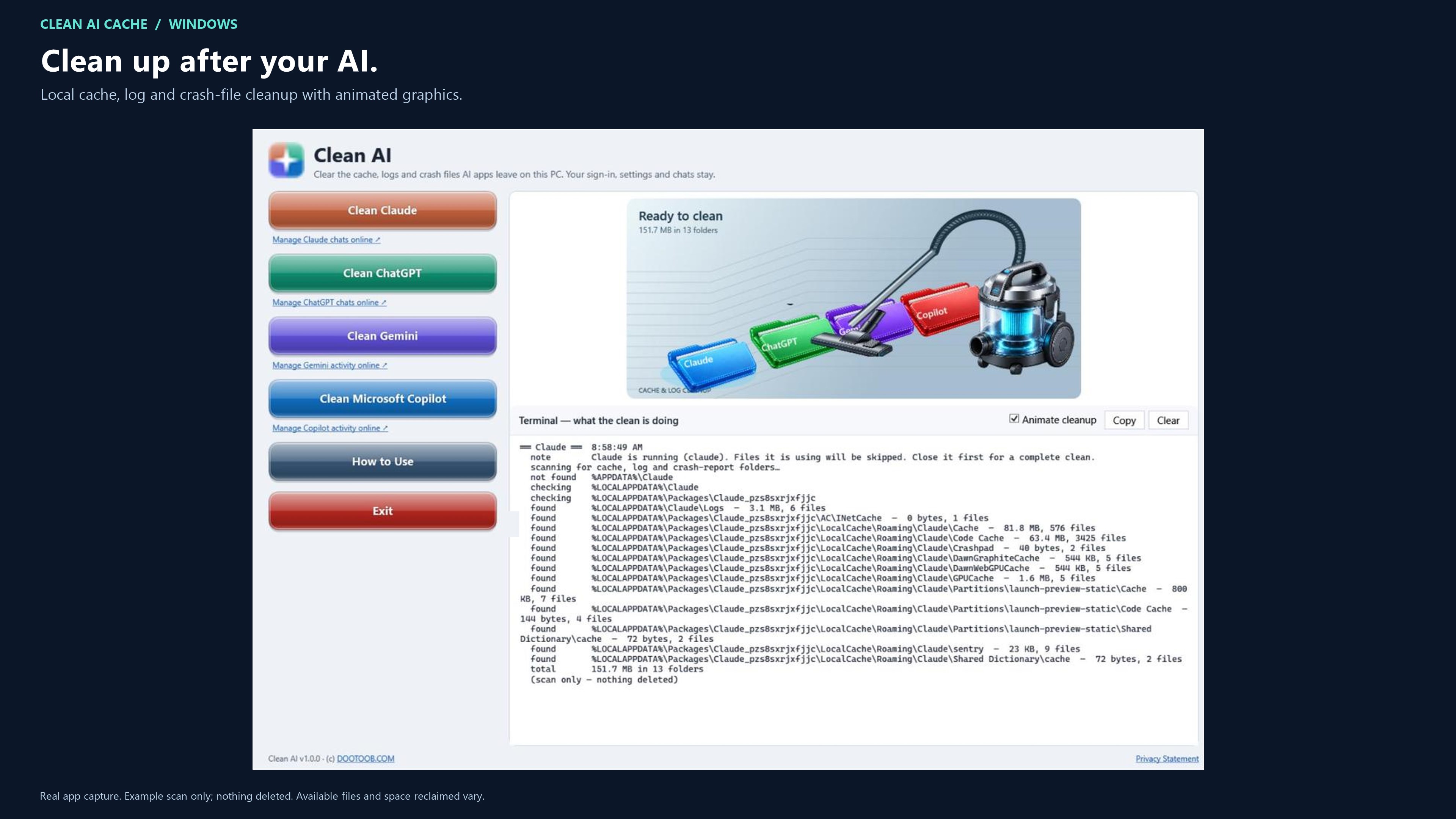
The current Microsoft Store listing
What you can do.
Clean up after your AI. Free up disk space.
Clean AI Cache is a focused AI cache cleaner for Windows. Remove eligible cache, log and crash files left behind by Claude, ChatGPT and Microsoft Copilot.
Simple Cleanup
• Choose the supported AI app you want to clean.
• Scan its local cache folders and confirm cleanup.
• See the space freed, files deleted and files skipped.
Animated Graphics
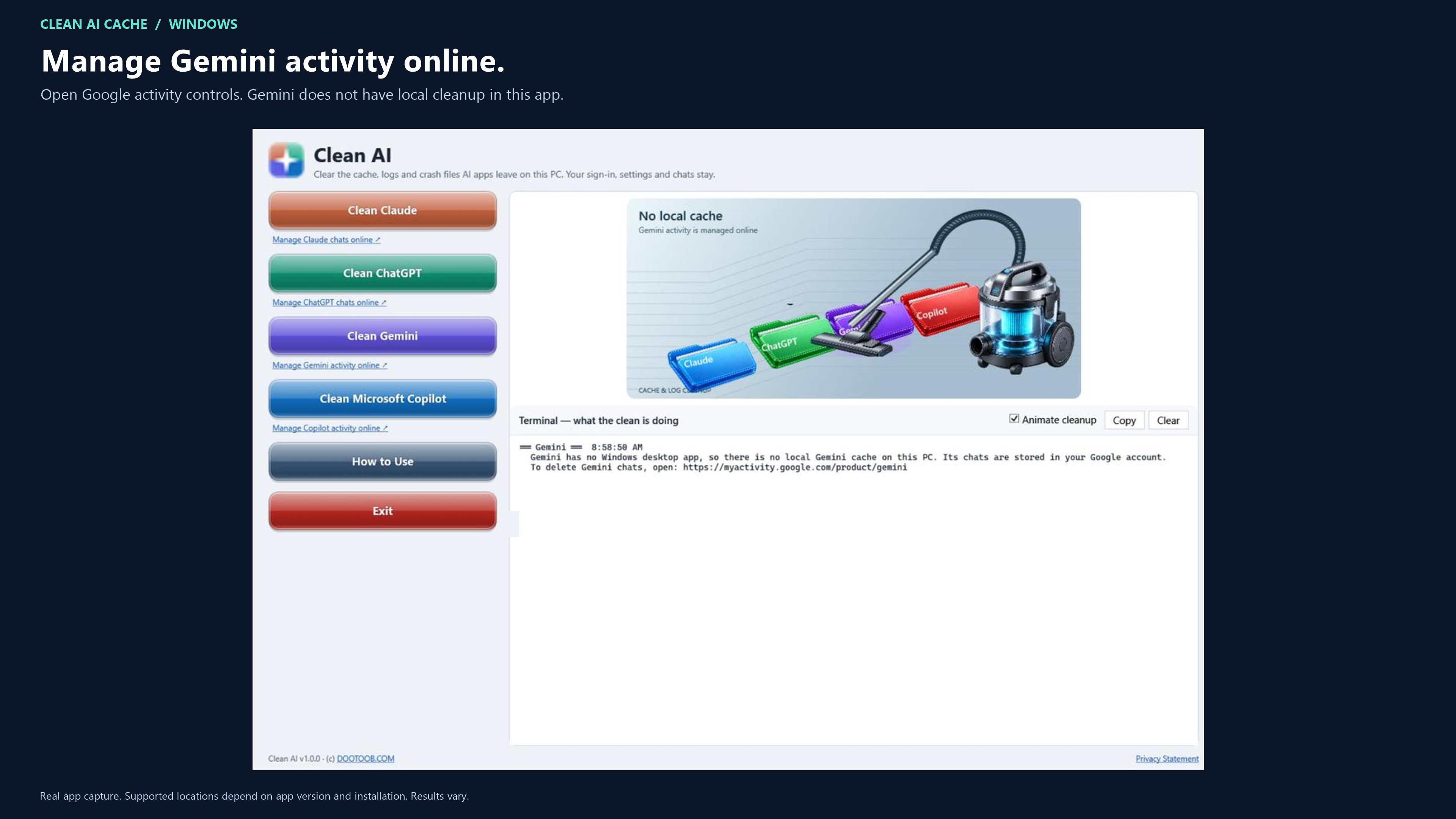
Watch the animated vacuum graphics during cleanup. Turn animation on or off whenever you like.
Your Chats Stay Yours
Recognized sign-in, settings and local conversation-storage folders are excluded. Local cache cleanup does not delete online chat history. Provider links open the websites where you manage your account activity.
Gemini Activity Guidance
Access guidance and a link to Google activity controls. Gemini does not receive local cache cleanup in this app.
Runs Locally On Your Pc
Cleanup runs on your Windows PC. Scan results and cleanup logs are not uploaded. A built-in How to Use guide helps you get started, and Copy lets you save the cleanup log.
Before cleaning, save your work and close the target AI app. Locked files are skipped. Available files and disk space reclaimed vary by installation; cache files may be recreated during use. This utility does not promise faster AI responses and does not clear browser history or Windows system caches.
Independent utility by DooToob / Team2020. Not affiliated with or endorsed by Anthropic, OpenAI, Google or Microsoft.
How to use
From opening the app to a useful result.
- 1
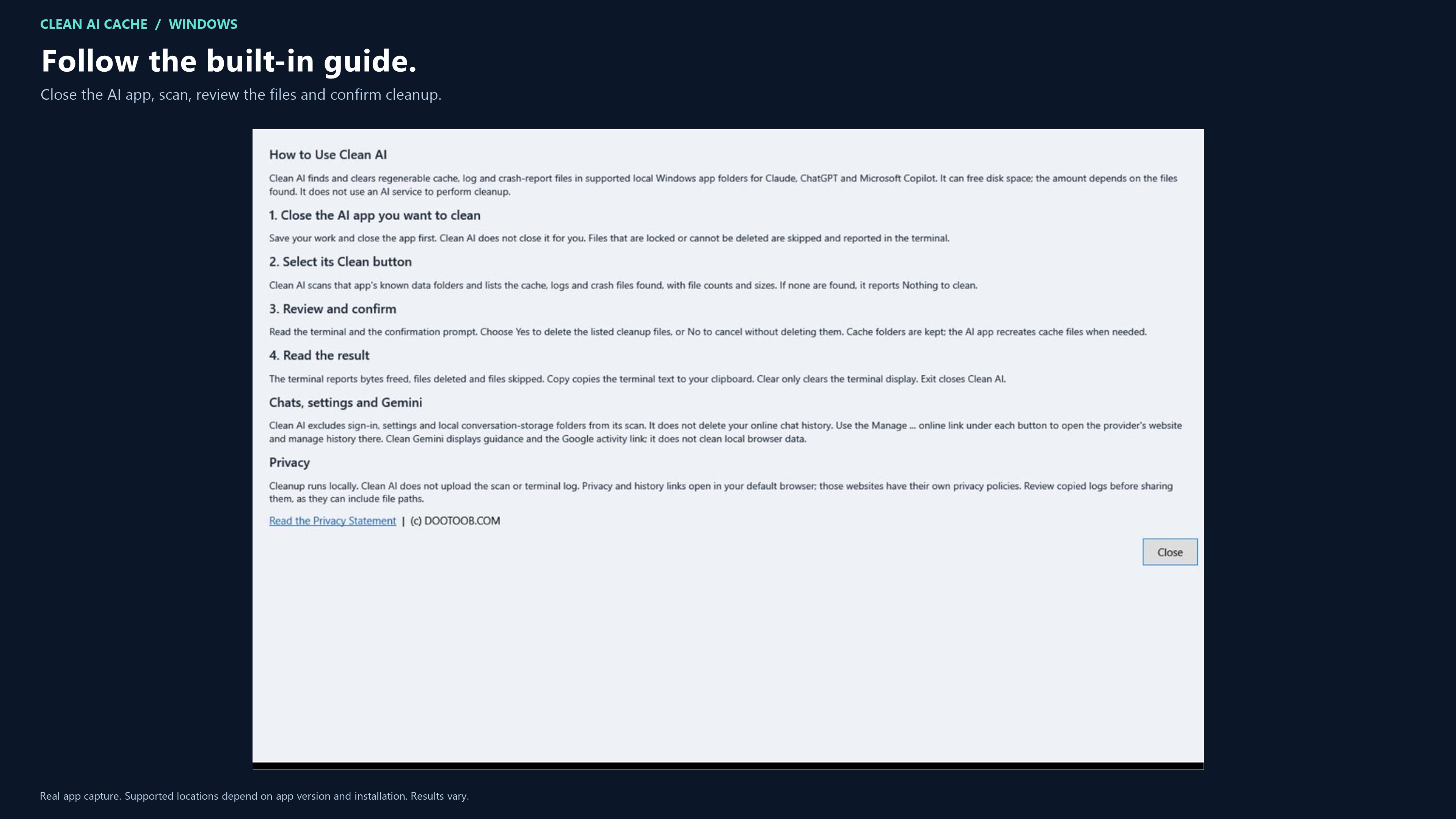
Close the supported AI app and select it in Clean Ai Cache.
- 2
Scan the eligible local cache, log and crash folders.
- 3
Review paths, file counts and sizes before confirming cleanup.
- 4
Run cleanup, then read or copy the results; online account history is managed separately.
See it before you get it
Explore the app.
All 6 screenshots from the current Store listing. Select any image for the full-size original.
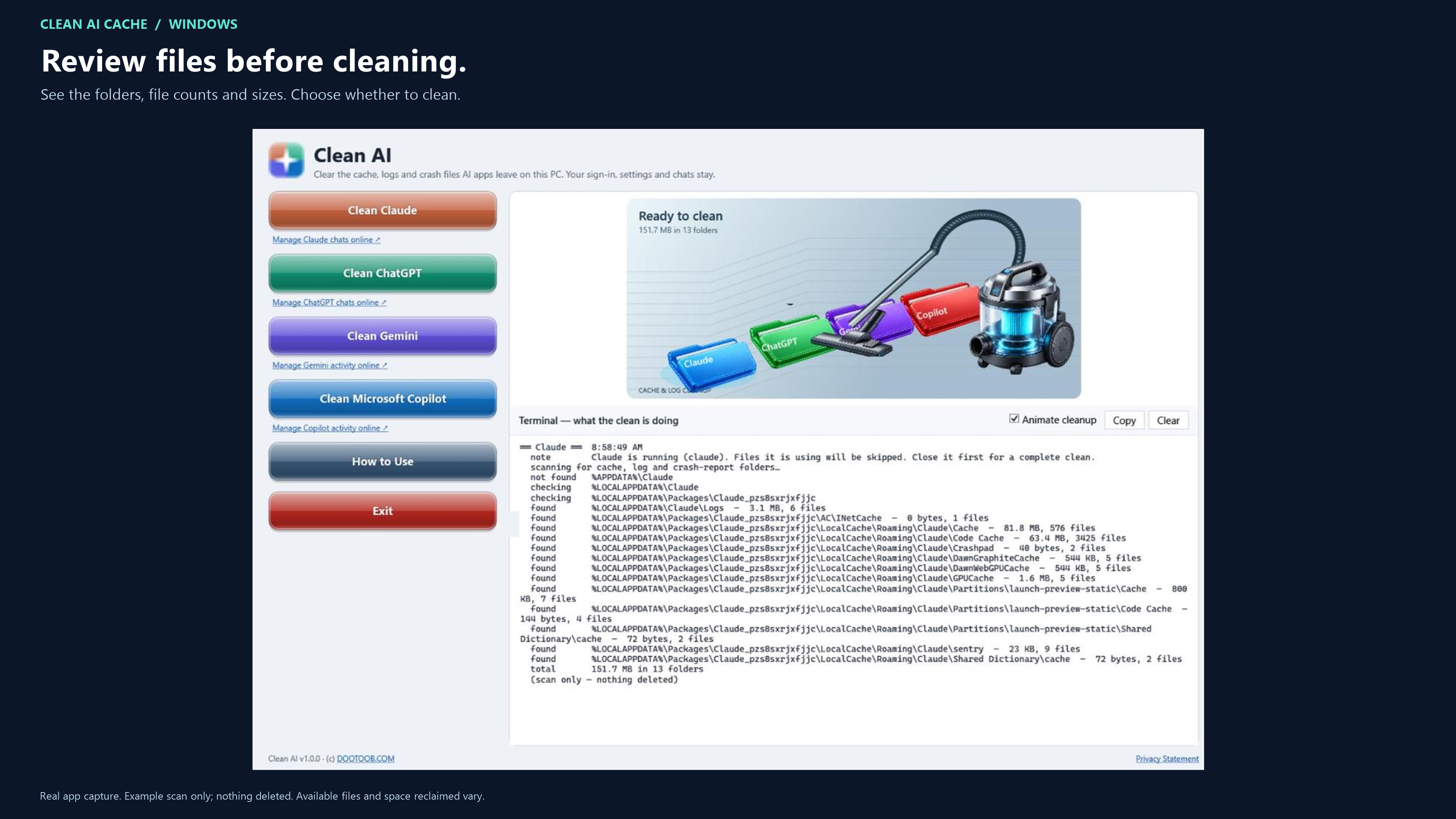
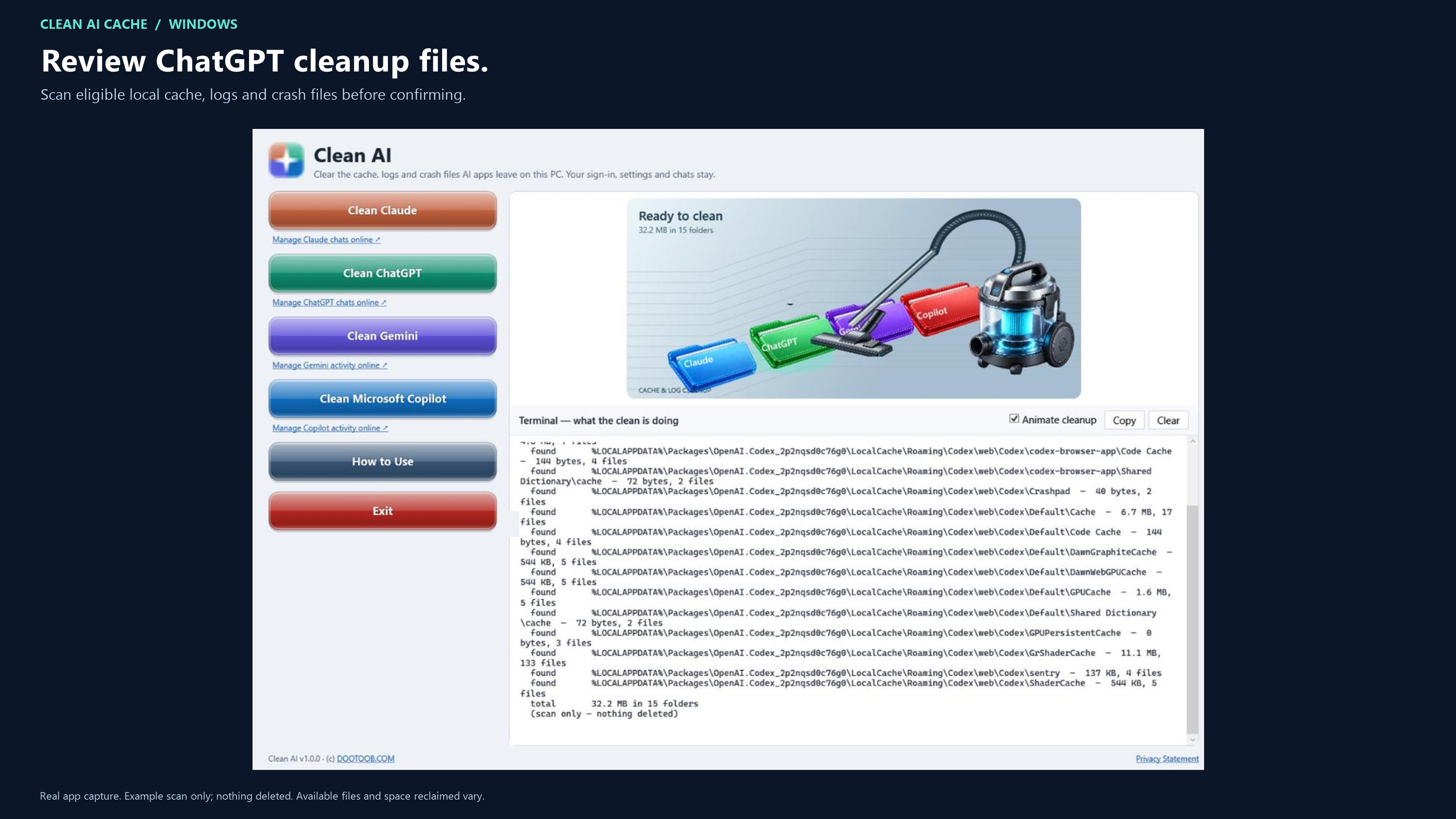
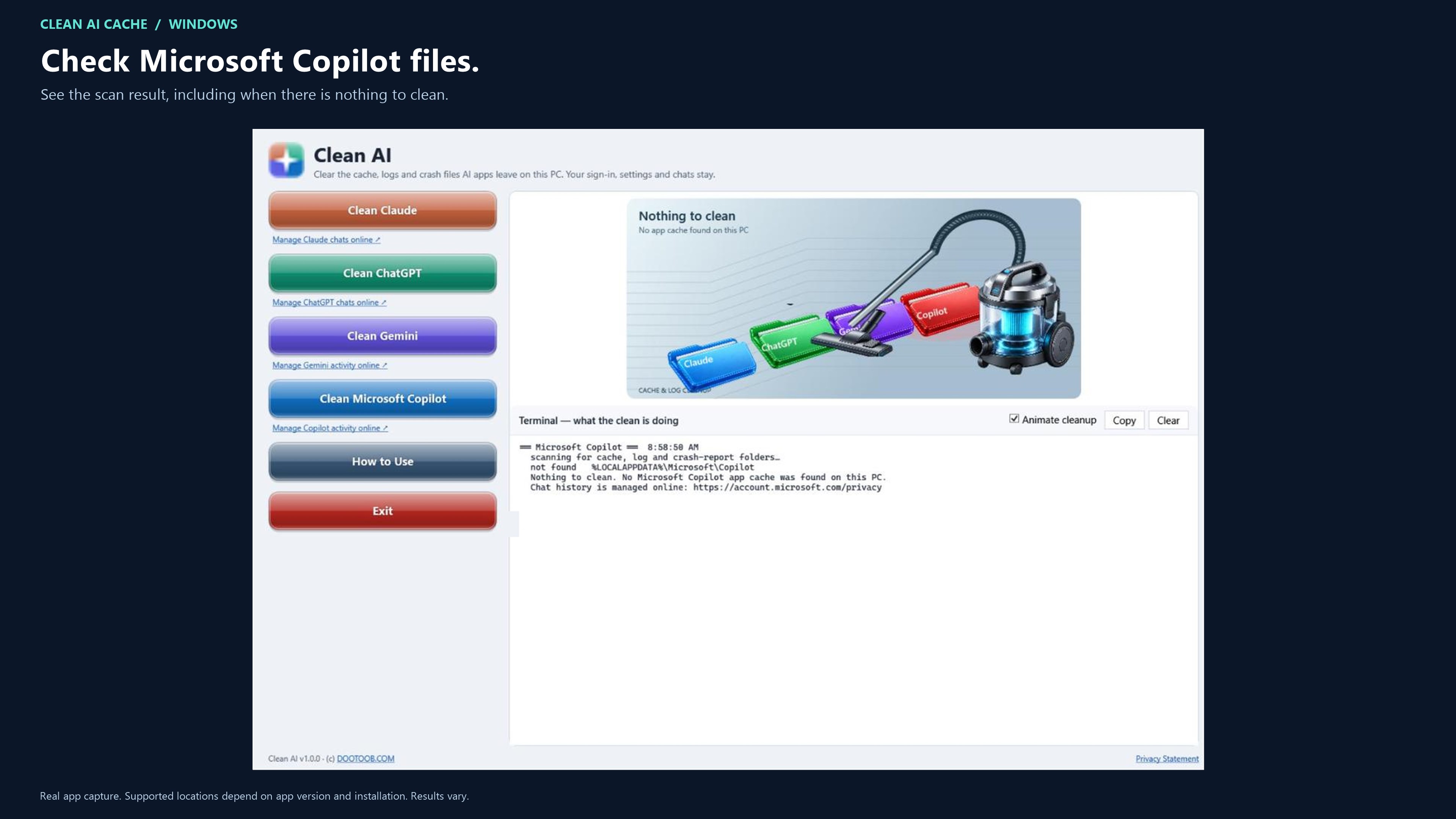
Open the Microsoft Store listing to see the current price, trial options, system requirements and reviews.
Your purchase and installation are handled by Microsoft Store.
App details.
Publisher: Team2020. Availability, requirements and purchase options are shown on the live Microsoft Store page.
App information and screenshots checked against the public Store listing on October 20, 2026.
Read the full Store listing ↗ · Privacy informationClean Ai Cache
Clear the clutter. Keep what matters.
Get it in Microsoft Store ↗← Explore all Microsoft appsMore from DooToob