Languages & screen reading
Magic Window Translator
Read across languages. Stay in your window.
Read PDFs, digital books, websites, documents and chat messages in your chosen language. Place the translation window over visible text and keep reading with local AI—without constant copying and pasting.
Published · In Microsoft Store · Product ID 9NDBF39RJWVM
The current Microsoft Store listing
What you can do.
Put a translation window over the words—and keep reading in your language.
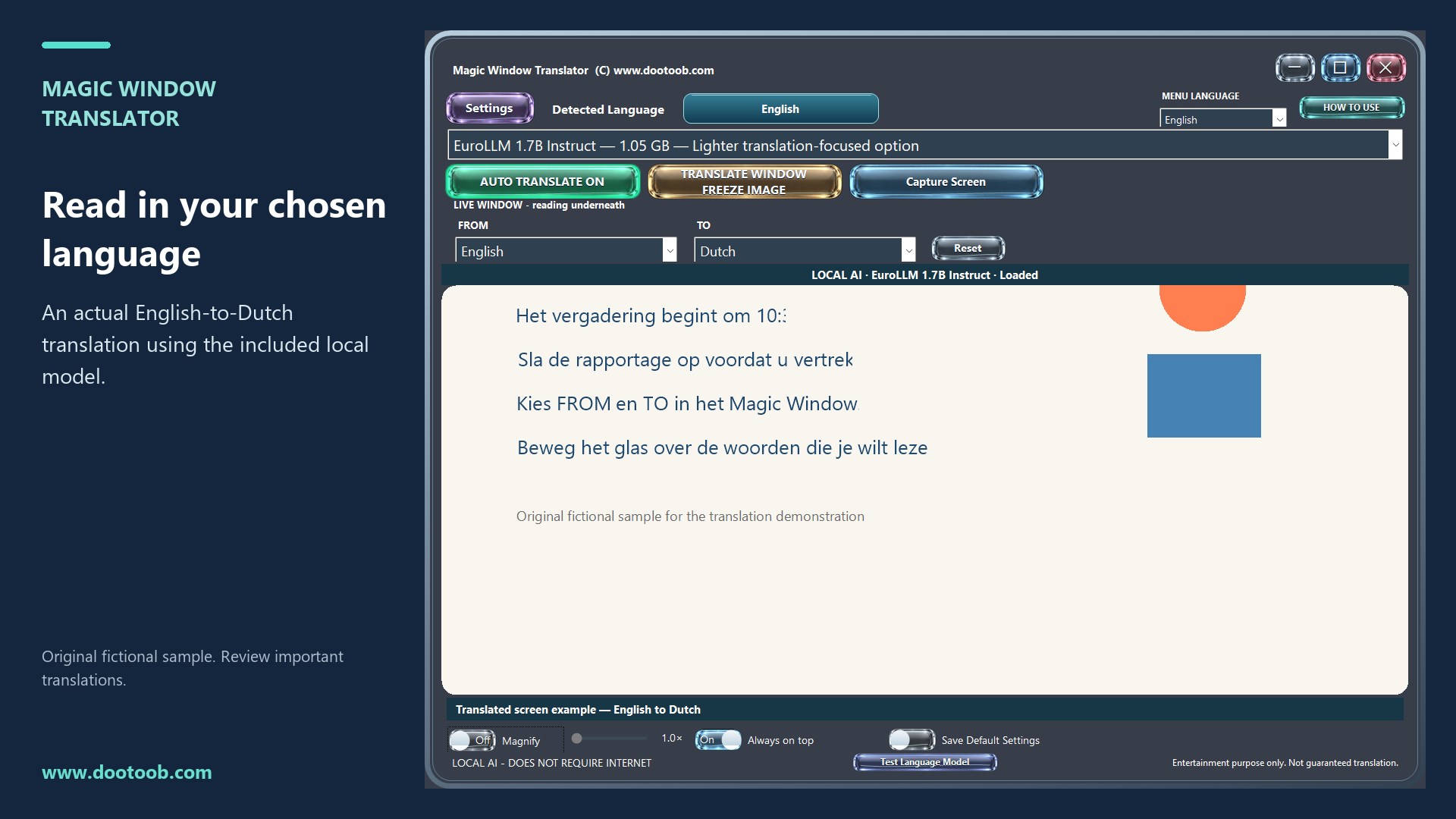
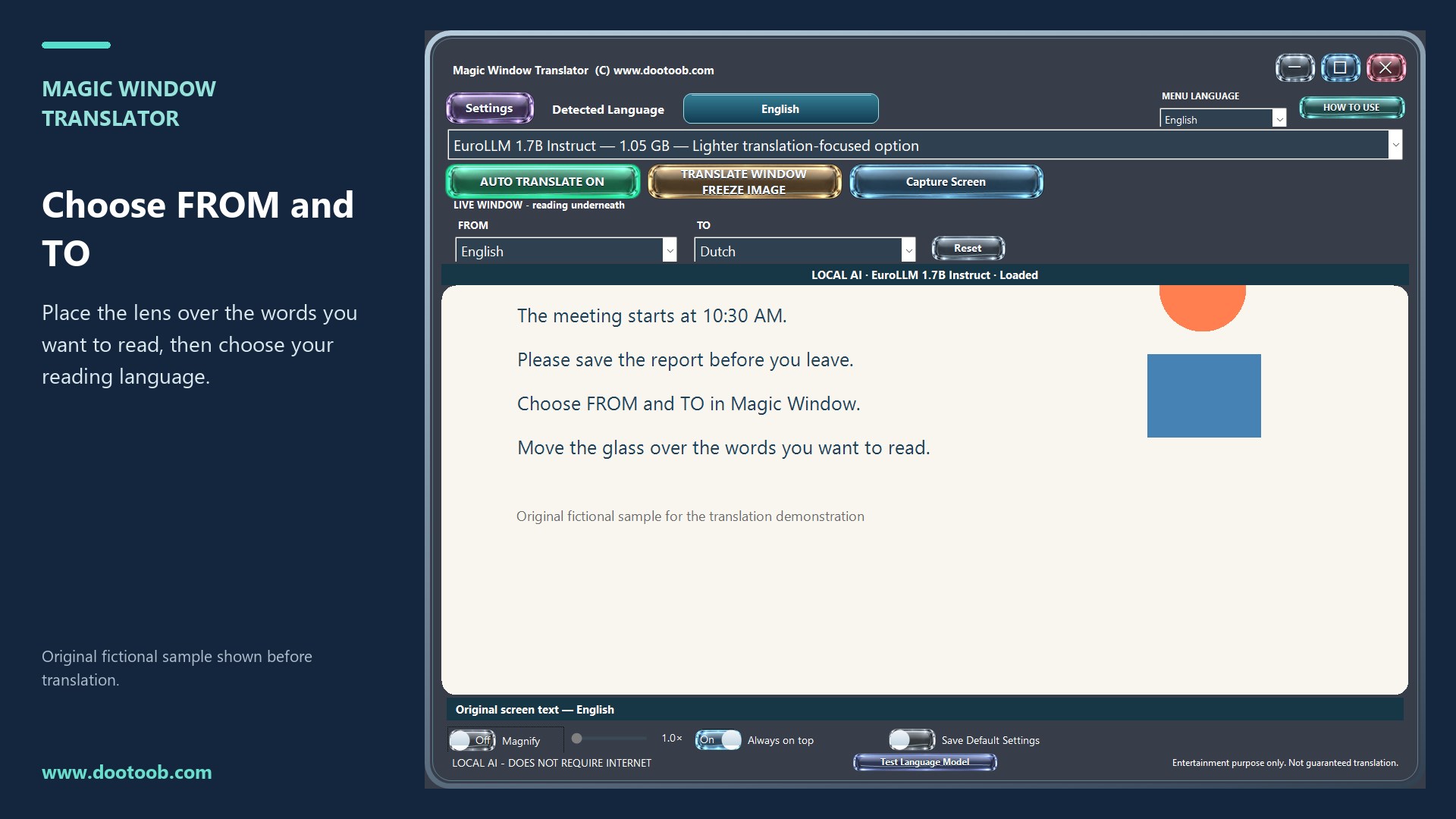
Explore PDF books, websites, documents and chat windows without constantly copying and pasting. Open the content you want to read, place Magic Window Translator over clearly visible text, choose FROM and TO, and see the translation inside your reading window. Move the window to the next passage, or freeze a view and read at your own pace. Your original document stays unchanged.
Great for reading visible PDF pages, digital books, emails, chat messages, web articles, tutorials and reference material.
Two Ways To Read
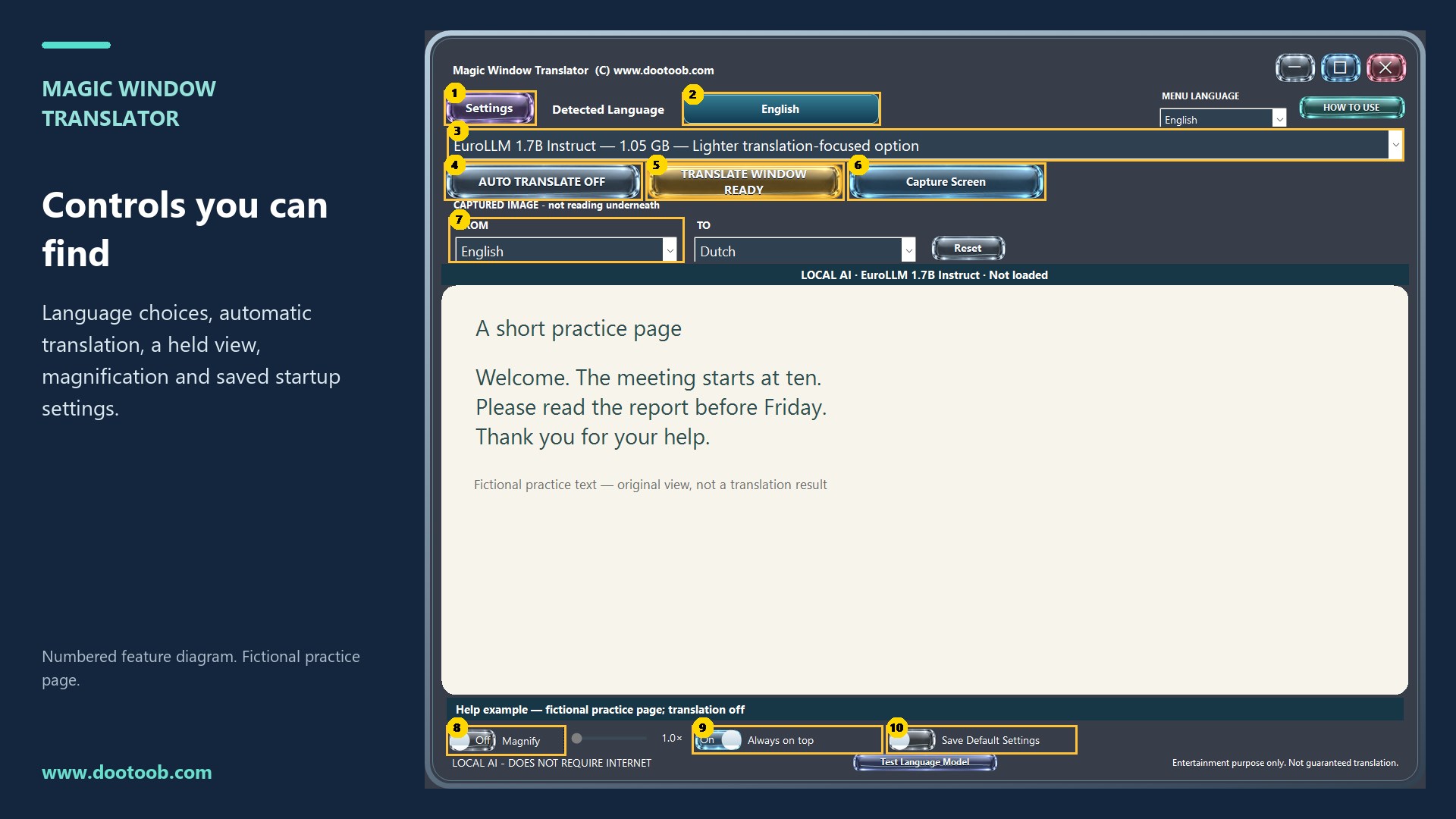
Use Auto Translate for ongoing updates, or choose Translate Window / Freeze Image to capture and translate a view once. A held image moves with the window, including onto another monitor. Translation pauses while you move or resize the frame. Mouse-wheel scrolling pauses automatic translation until 1.5 seconds after the last scroll movement.
Local Ai On Your Pc
The approximately 1 GB EuroLLM 1.7B default model is included so the app can translate after installation. EuroLLM 9B, Qwen 3 4B and Google TranslateGemma 4B are offered as optional downloads. Local translation needs no cloud API key or model-provider login and does not send screen text to an online translation service. Google TranslateGemma is an optional local model, not the Google Translate website or a cloud API. Available source and target languages depend on the selected model; unsupported choices are grayed out.
Read Your Way
Magnification starts off; enable Magnify and adjust the slider when you want a closer look. Choose a menu language for the controls and illustrated How to Use guide. Reset both languages to English, click Detected Language to refresh detection and set FROM, keep the window on top, and export the current view as PNG, JPEG, BMP or a one-page image PDF. Save Default Settings writes your current choices to startup.ini in writable app data for the Store version (beside the EXE for a portable copy) for the next launch.
Models And Performance
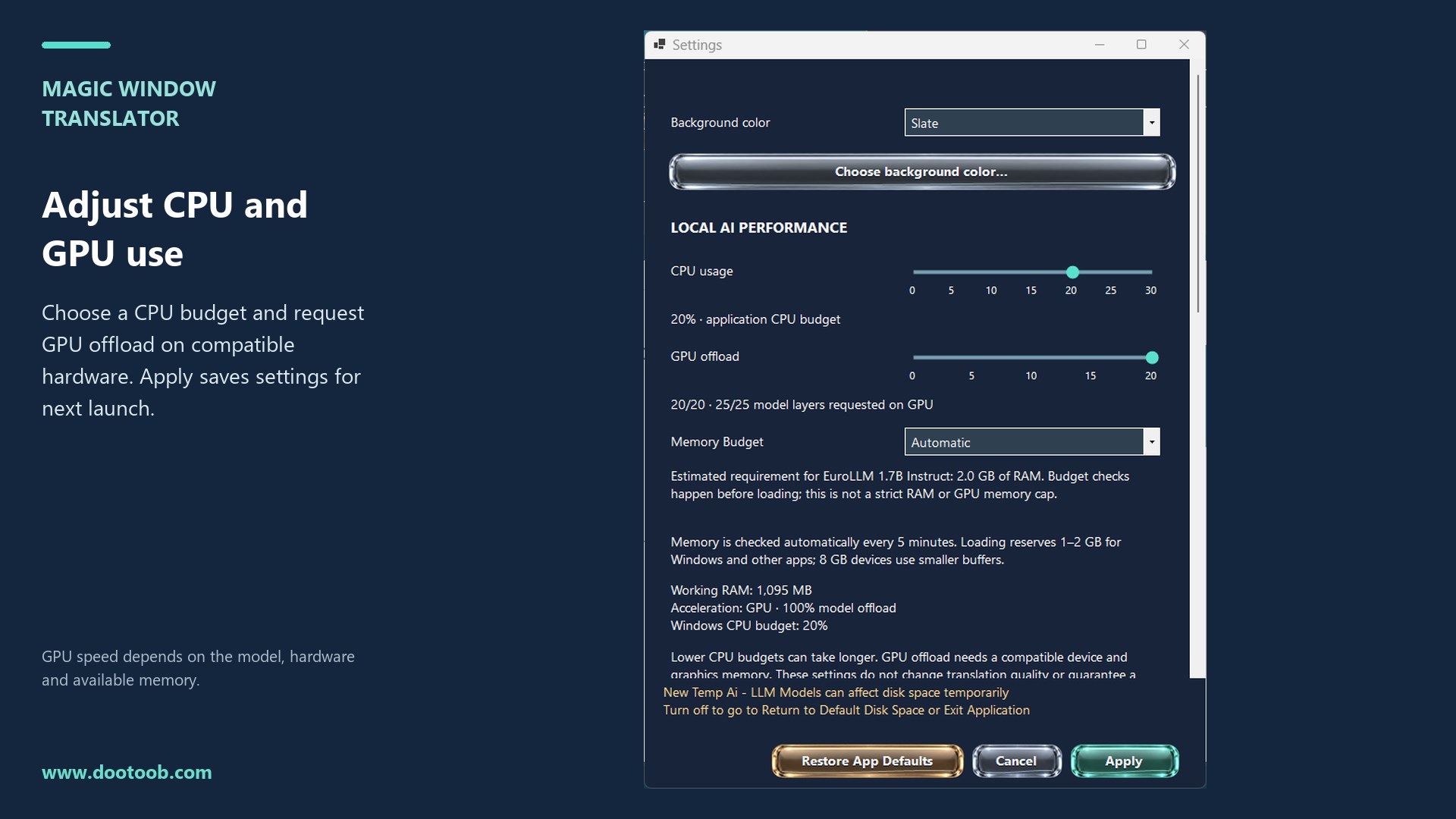
Choose CPU budget, compatible GPU offload and memory settings. Applying Settings saves the current choices to startup.ini. GPU offload can improve speed on compatible hardware with sufficient graphics memory; results depend on your PC and model. Memory availability is reassessed in the background. The main model dropdown offers all supported choices. Selecting a model marked Download required opens its Settings entry. Before downloading to the local drive, a Yes/No notice shows the model size, estimated total app-and-model storage and required free space. Optional EuroLLM 9B, Qwen 3 4B and TranslateGemma downloads stay installed. Settings also includes six explicitly temporary models, with one temporary selection at a time. A temporary model must be downloaded before use and is removed when turned off or when the app closes. The app requires at least three times that model's file size in available disk space before downloading. Downloads use internet data.
Test Language Model translates a sample phrase from English into supported targets and presents a paced control tour. Results are available for review; this is not an independent accuracy benchmark.
Before You Start
This Windows desktop application uses OCR to read visible text. Source languages may require the corresponding Windows OCR language feature. The default model is included; larger models are downloaded only when requested. Model file sizes are not RAM limits; larger models need more memory and may run slowly on some PCs. GPU acceleration depends on compatible hardware and drivers; CPU fallback is available.
OCR and translation can make mistakes. Layout, fonts, text color and hidden backgrounds are estimated from pixels; exact reconstruction is not guaranteed, and longer translations may clip. Artwork or decorative text may be left unchanged. Review important translations. The app displays: Entertainment purpose only. Not guaranteed translation.
Brought to you by www.dootoob.com
Support: www.dootoob.com/support
How to use
From opening the app to a useful result.
- 1
Place the lens over visible text and choose the source and target languages.
- 2
Run translation and compare the displayed result with the original.
- 3
Use Reset or Magnify when the reading area needs adjustment.
- 4
Save compatible CPU/GPU settings only after confirming they work on the PC.
See it before you get it
Explore the app.
All 5 screenshots from the current Store listing. Select any image for the full-size original.
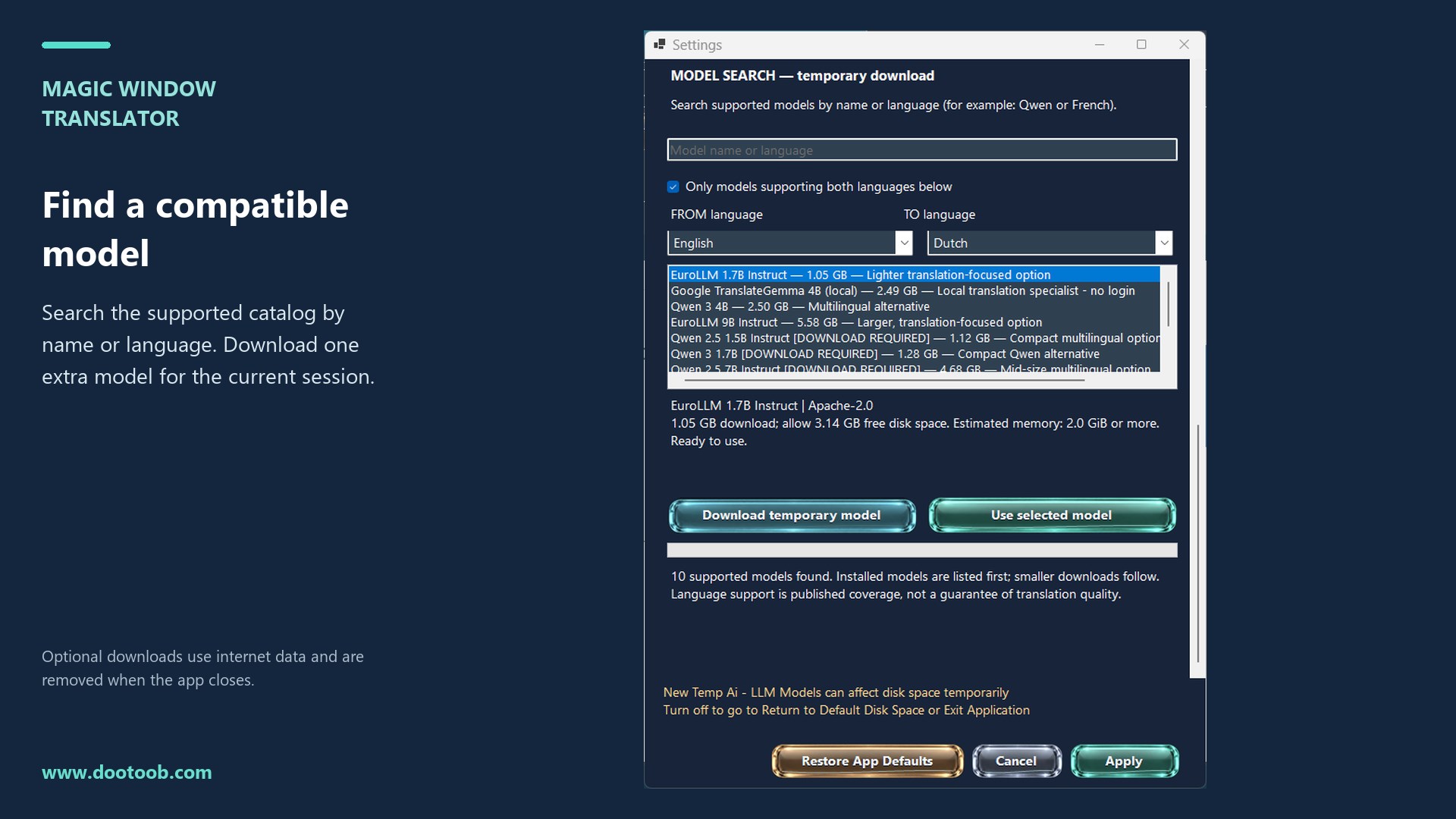
Open the Microsoft Store listing to see the current price, trial options, system requirements and reviews.
Your purchase and installation are handled by Microsoft Store.
App details.
Publisher: Team2020. Availability, requirements and purchase options are shown on the live Microsoft Store page.
App information and screenshots checked against the public Store listing on October 20, 2026.
Read the full Store listing ↗ · Privacy informationMagic Window Translator
Read across languages. Stay in your window.
Get it in Microsoft Store ↗← Explore all Microsoft appsMore from DooToob